Grey-Colored Monthly Calendar With Notes
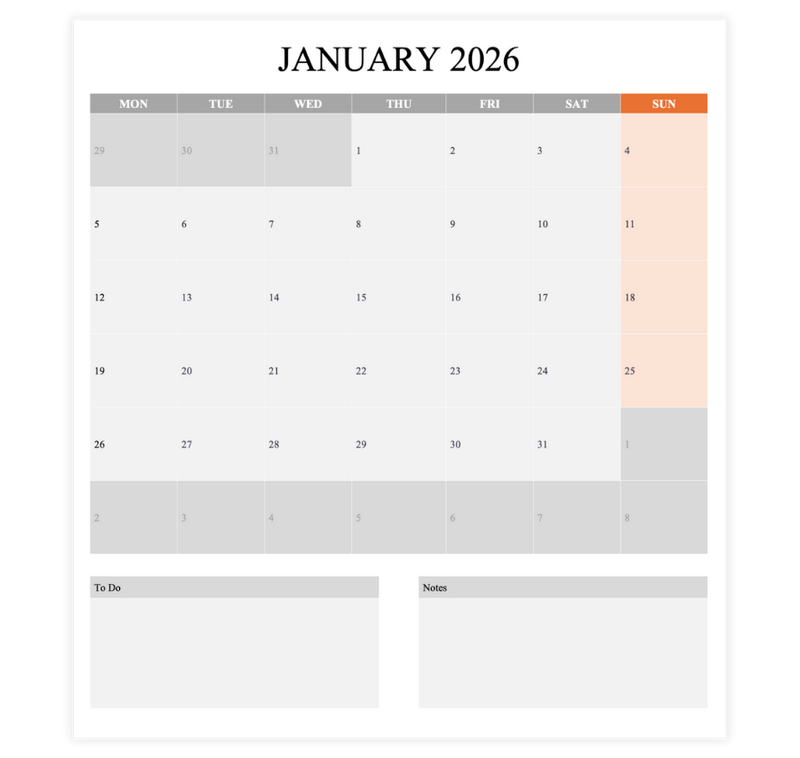
Preview Information
- Preview shows actual template design
- Fully editable in excel
Template File: grey-colored-monthly-calendar-12-month-2026.xlsx
Description
This free monthly calendar template starting with January 2026 features a modern grey color scheme, combining style and functionality for effective monthly planning.
This aesthetic calendar provides a clean monthly layout with space for notes, making it perfect for tracking events, appointments, and tasks.
This calendar template works in Microsoft Excel and Google Sheets.
Benefits of Using This 2026 Calendar Planner:
- Stylish Design. A sleek grey theme that complements both professional and personal use.
- Adjustable Dates. Automatically updates when you enter the desired year.
- Practical Layout. Organize your month effectively with clear day-to-day divisions.
- Extra Writing Space. Includes space for notes and reminders.
- Customizable. Tailor it to your unique planning needs.
- Versatile Usage. You can use this calendar planner digitally or print it out.
Instructions
Step 1: Download the 2026 Calendar Planner
- Click on the "Download" button or link for the monthly planner.
- Save the .xlsx file to your computer.
Step 2: Edit the Calendar
- Locate the downloaded file on your computer and double-click to open it in Microsoft Excel or upload it to Google Sheets
- Add Month and Year. Make sure the correct month and year are displayed at the top of the template.
- Plan Your Month. Add events, appointments, or tasks to specific days by clicking on the corresponding cells.
- Use the To-Do Section. Enter your top priorities or tasks for the month in the "To-Do" box at the bottom.
- Add Notes. Write additional reminders or information in the "Notes" box.
- Modify Design (Optional).
- Use the Home tab to change fonts, text colors, or highlight specific dates.
- Adjust cell sizes if more space is needed for events or notes.
Step 3: Print the Calendar Template
- Go to File > Print in Excel.
- Check the Print Preview to ensure the calendar and all sections fit neatly on the page.
- Adjust Print Settings (if needed).
- Set the orientation to Portrait or Landscape depending on your preference.
- Confirm the paper size (usually A4 or Letter).
- Select your printer and click Print.
Advertisement
Advertisement